LawConnect for ChatGPT

Walk into your first legal consultation ready.

The first hour with a lawyer is usually spent on paperwork: which contract, which payslips, which emails. The LawConnect plugin for ChatGPT finds them where they already live, builds a matter summary, and tells you what is missing before that meeting.

Setup about 5 minutes, onceWorks with Gmail or OutlookCost the plugin is free
GmailGoogle DriveOutlook Matter summary
Step 1 of 5

Get ChatGPT Plus

The LawConnect plugin runs inside ChatGPT, and plugins need a paid ChatGPT plan.

chatgpt.com/pricing
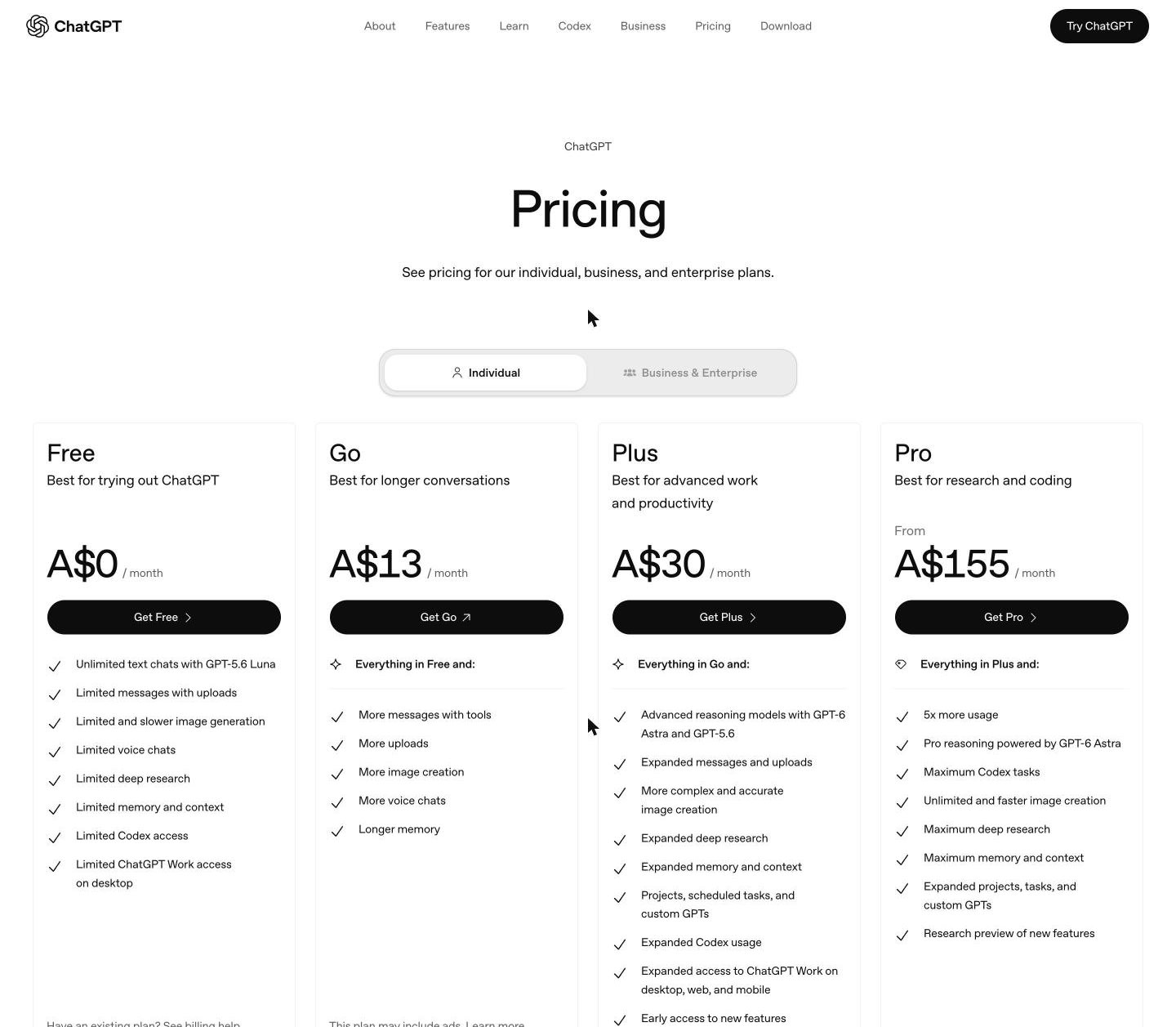
The ChatGPT pricing page, from the header down to the plan cards

Open chatgpt.com and click Pricing.

Plugins are available on ChatGPT's paid plans. If you already have Plus or a higher plan, skip to step 2.

Scroll to the plans and click Get Plus.

Plus is the lowest plan that includes plugins. Sign in or create a ChatGPT account when asked.

Open chatgpt.com and click Pricing.

Plugins are available on ChatGPT's paid plans. If you already have Plus or a higher plan, skip to step 2.

Scroll to the plans and click Get Plus.

Plus is the lowest plan that includes plugins. Sign in or create a ChatGPT account when asked.

Step 2 of 5

Install the LawConnect plugin

Plugins live in their own directory inside ChatGPT. Finding and installing LawConnect takes a minute, and you only do it once.

chatgpt.com/plugins
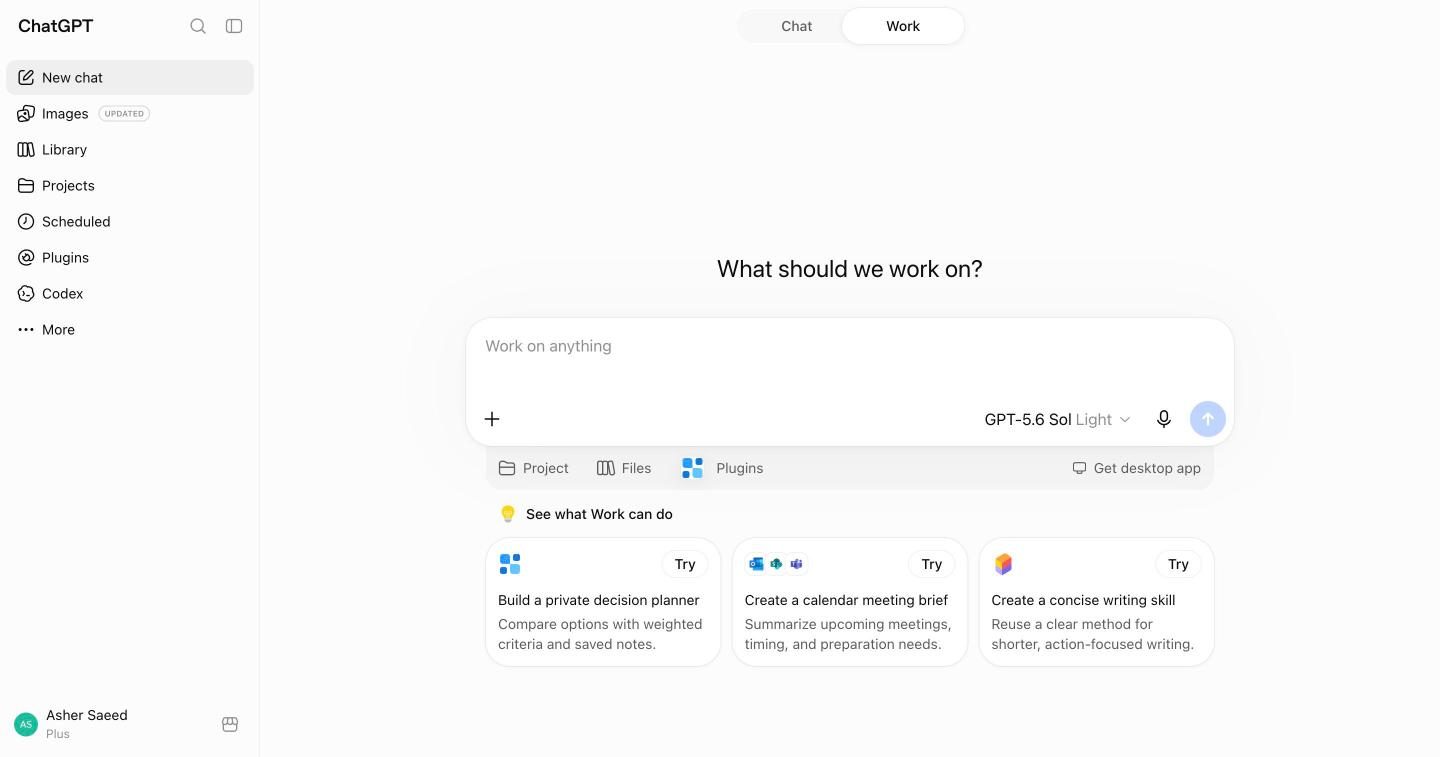
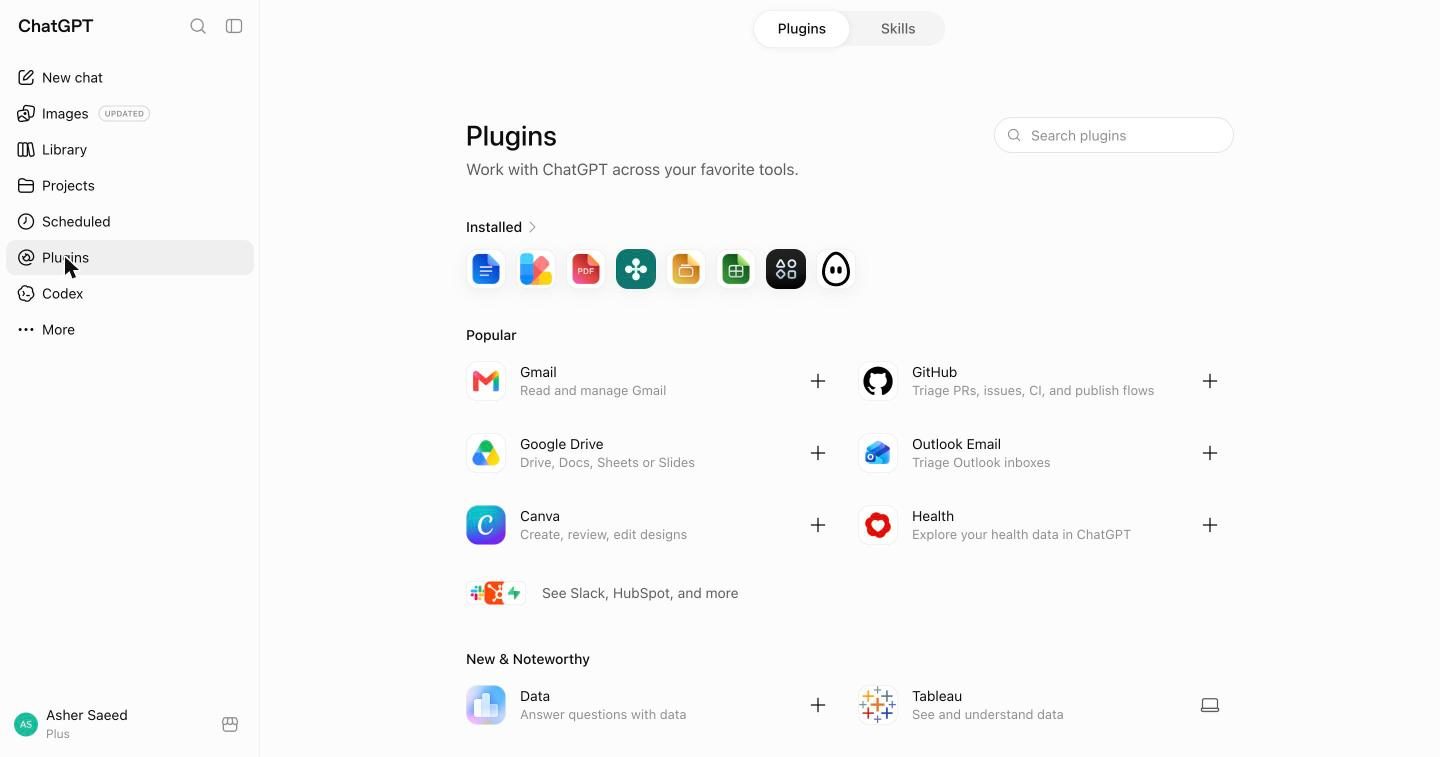
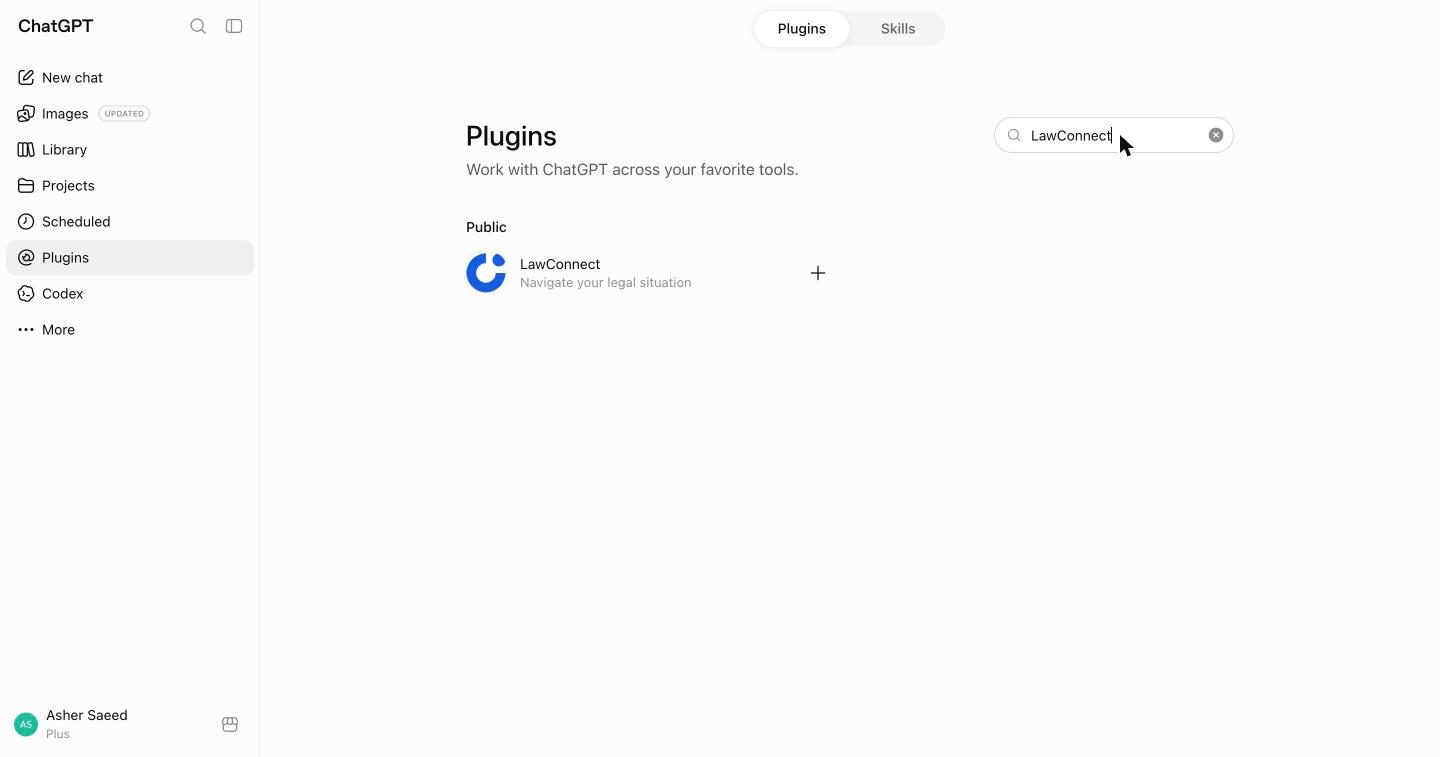
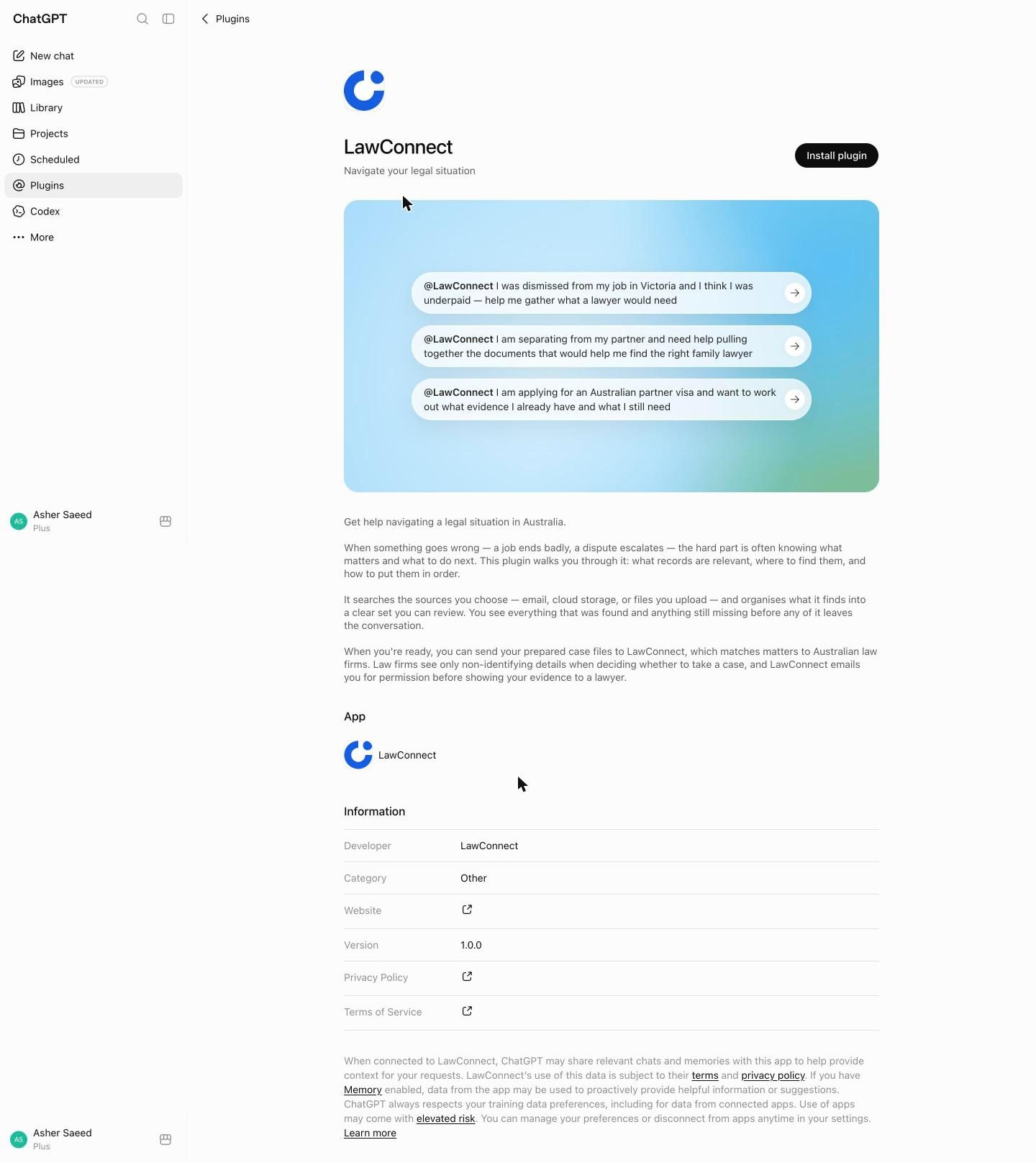
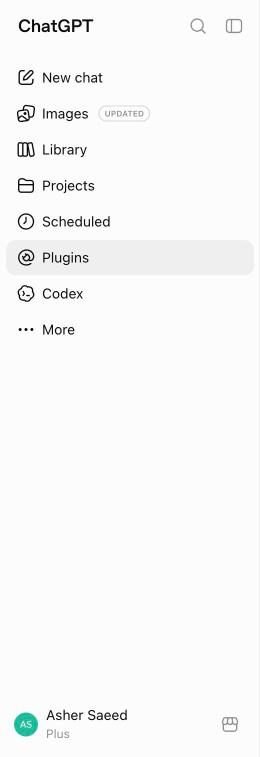
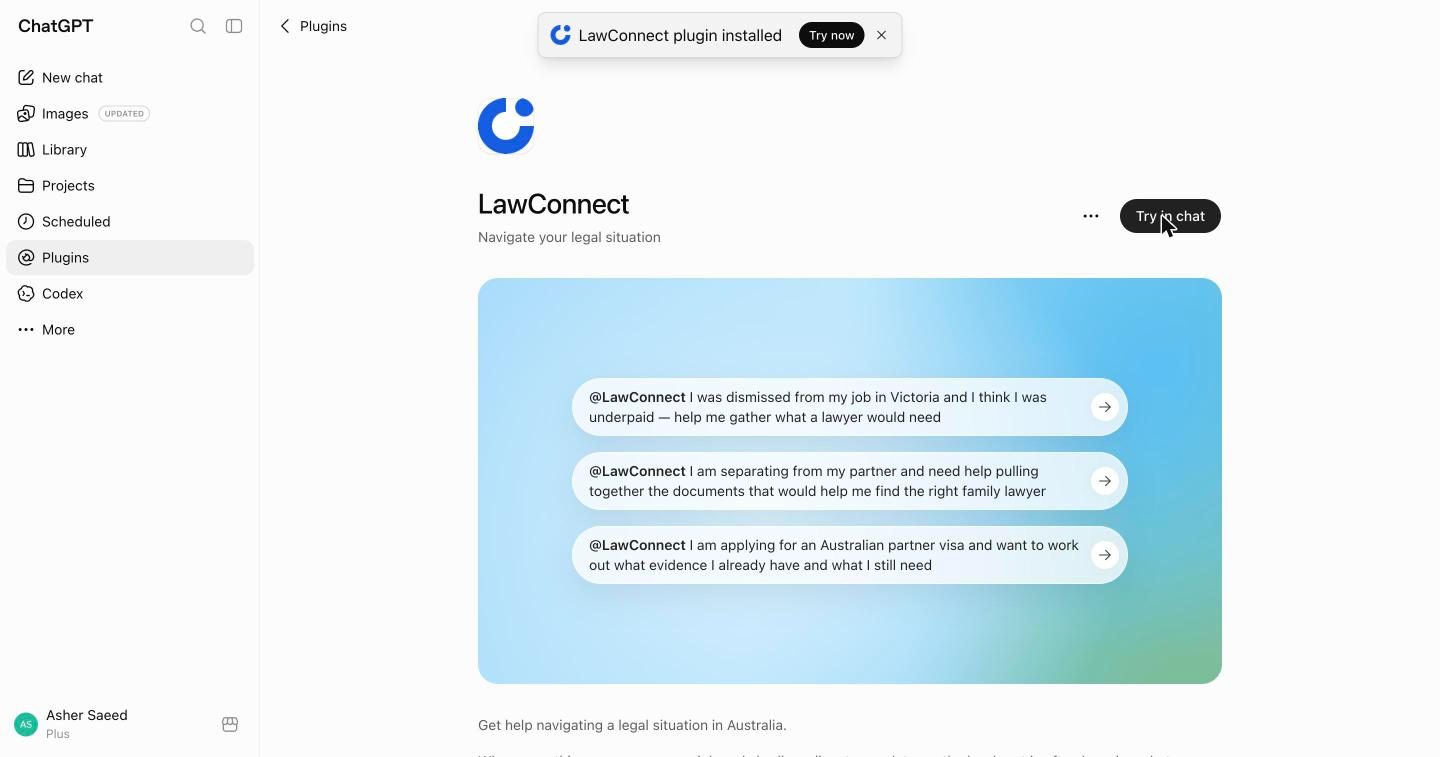
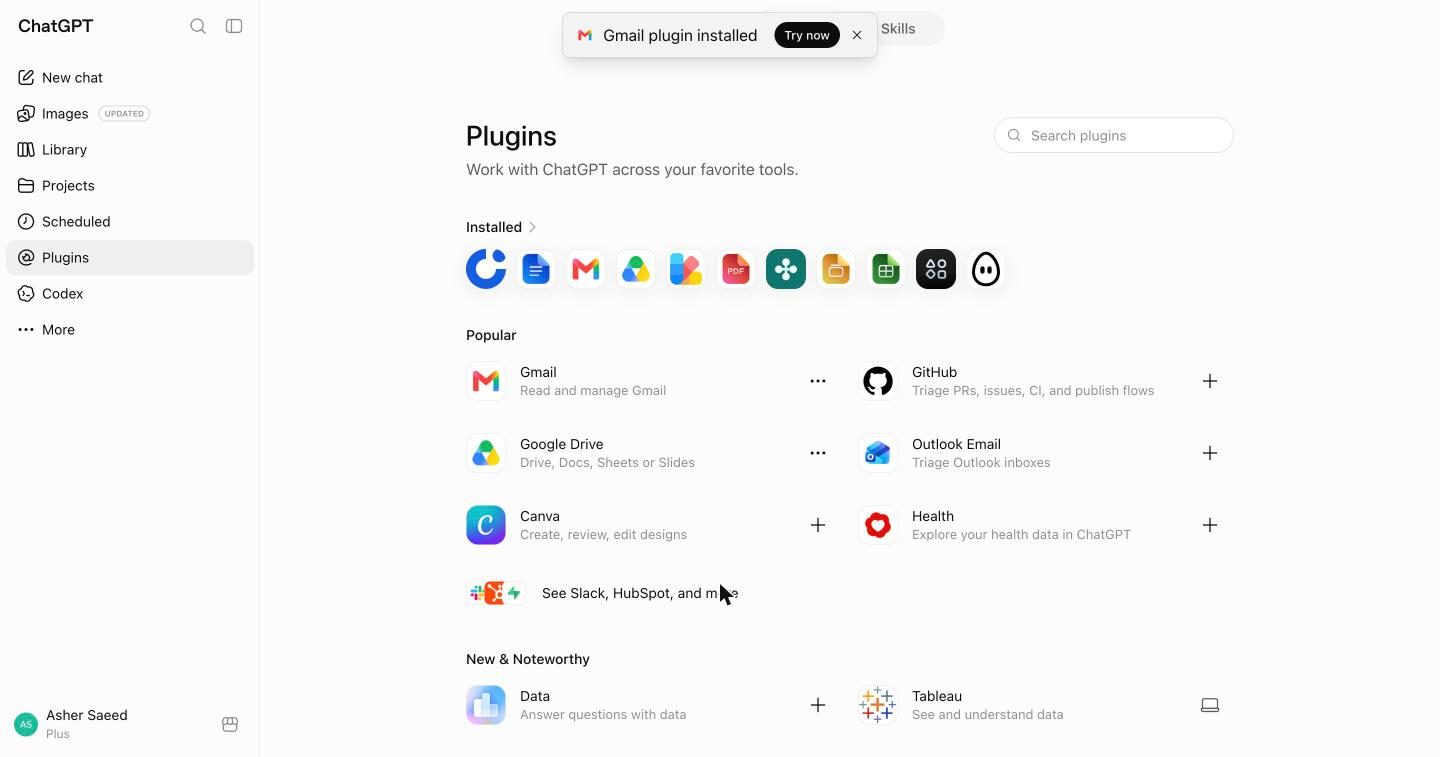
ChatGPT home screen with Plugins in the left sidebar The ChatGPT Plugins directory Search results for LawConnect in the plugin directory The full LawConnect plugin listing, from the Install button down to the developer and privacy details A notification reading LawConnect plugin installed

Click Plugins in the left sidebar.

It sits under Projects and Scheduled.

Click the search box and type LawConnect.

The directory holds hundreds of plugins, so search rather than browse.

Click the LawConnect result.

Listed as "Navigate your legal situation". It works for employment, family, visa and other everyday matters.

Read the listing.

Three example prompts show the level of detail you need: one plain sentence about what happened.

Scroll for the details.

Developer, version, privacy policy, and what ChatGPT may share with the plugin.

Click Install plugin.

A short redirect to LawConnect and back. There is no account to create and nothing to download.

Look for "LawConnect plugin installed".

The button becomes Try in chat. That is all the setup LawConnect needs.

Click Plugins in the left sidebar.

It sits under Projects and Scheduled.

Click the search box and type LawConnect.

The directory holds hundreds of plugins, so search rather than browse.

Click the LawConnect result.

Listed as "Navigate your legal situation". It works for employment, family, visa and other everyday matters.

Read the listing.

Three example prompts show the level of detail you need: one plain sentence about what happened.

Scroll for the details.

Developer, version, privacy policy, and what ChatGPT may share with the plugin.

Click Install plugin.

A short redirect to LawConnect and back. There is no account to create and nothing to download.

Look for "LawConnect plugin installed".

The button becomes Try in chat. That is all the setup LawConnect needs.

Step 3 of 5

Connect Gmail and Google Drive

The plugin searches the sources you connect. Gmail is where offer letters and HR replies live; Drive is where the payslips and PDFs end up. This uses Google's own sign in.

chatgpt.com/plugins
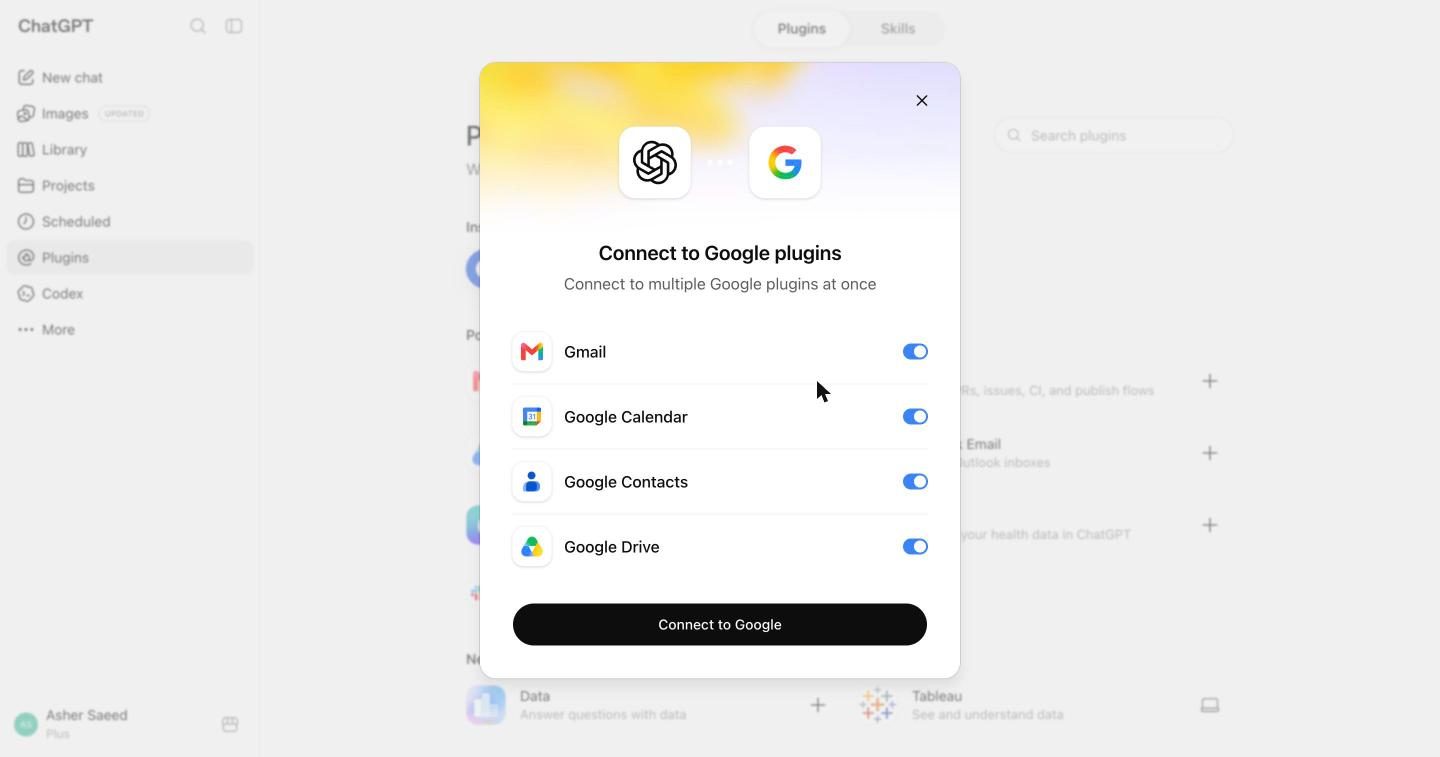
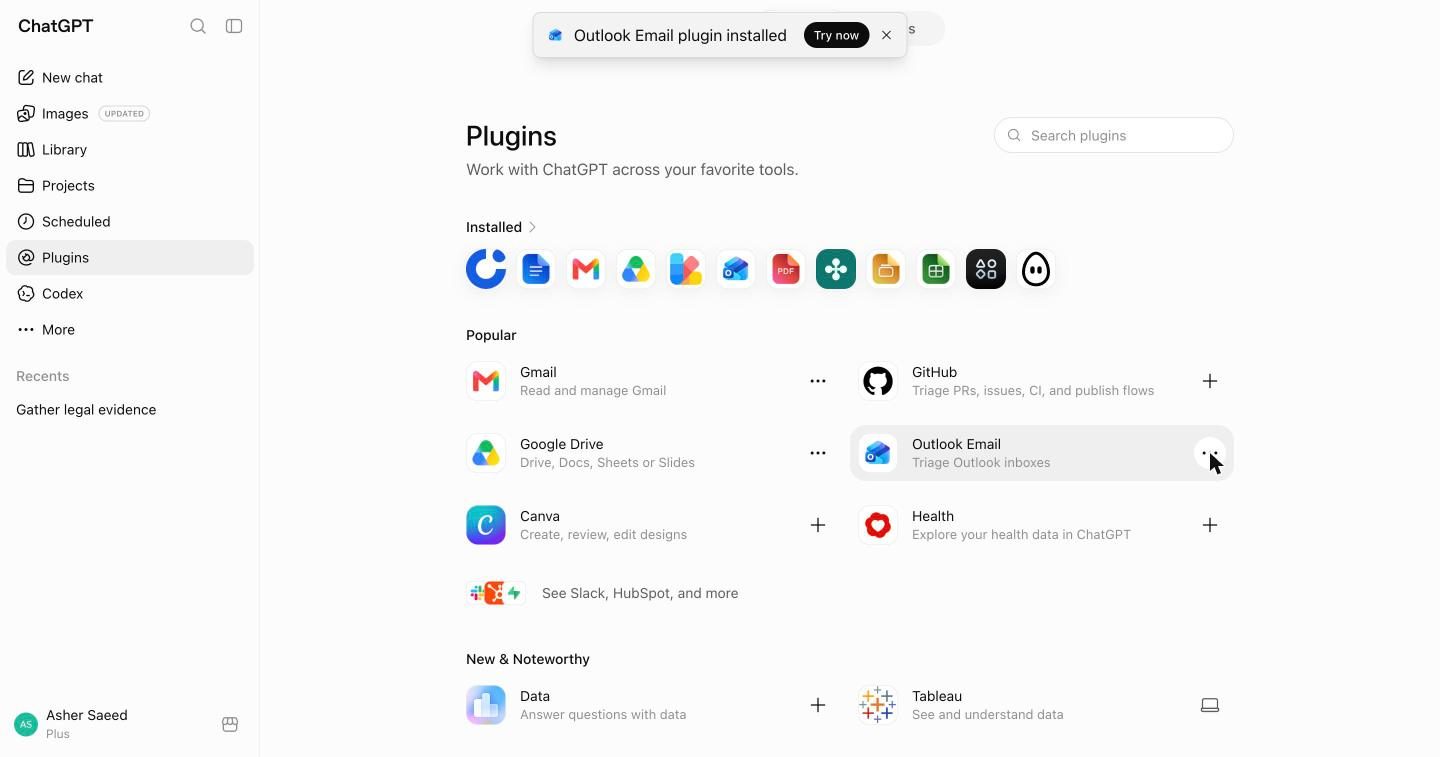
The LawConnect listing after installing, with a Plugins back link at the top The plugin directory with Gmail and Google Drive under Popular Connect to Google plugins dialog with four toggles on The same dialog with only Gmail and Google Drive switched on A reminder to select all permissions, with a Continue to Google button Google's choose an account screen Google's full permission screen, from Select all down to the Continue button Plugins directory showing LawConnect, Gmail and Google Drive installed

Click Plugins at the top to go back to the directory.

You are still on the LawConnect listing from step 2. The back link sits above the plugin name.

Now click the + next to Gmail.

Your inbox is where the offer letter, the warning and the HR replies already are.

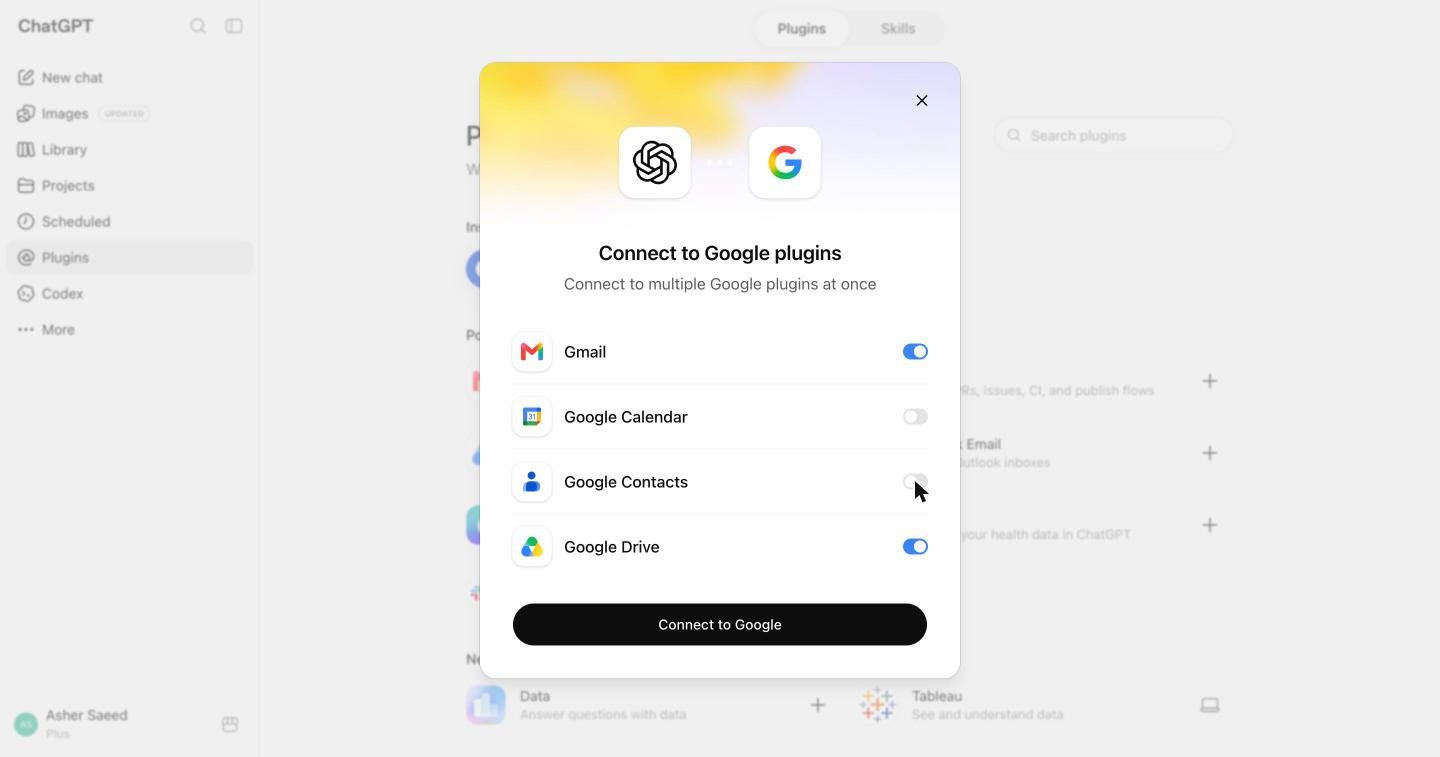
A Google dialog opens with four toggles on.

Calendar and Contacts are on by default.

Turn off Calendar and Contacts, then click Connect to Google.

Gmail and Google Drive are the two the plugin can search. Connect only what you want searched.

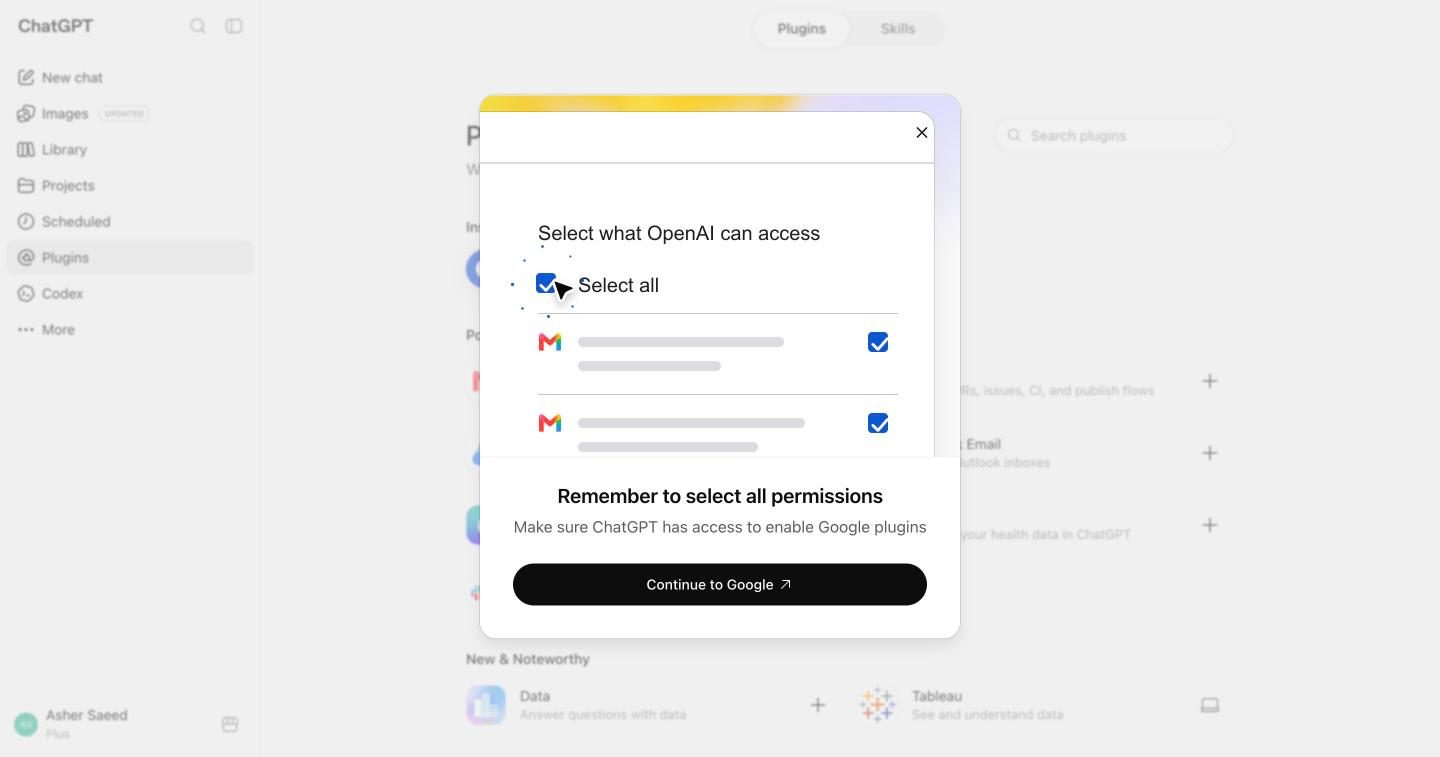
Click Continue to Google.

ChatGPT reminds you to select all permissions on the next screen.

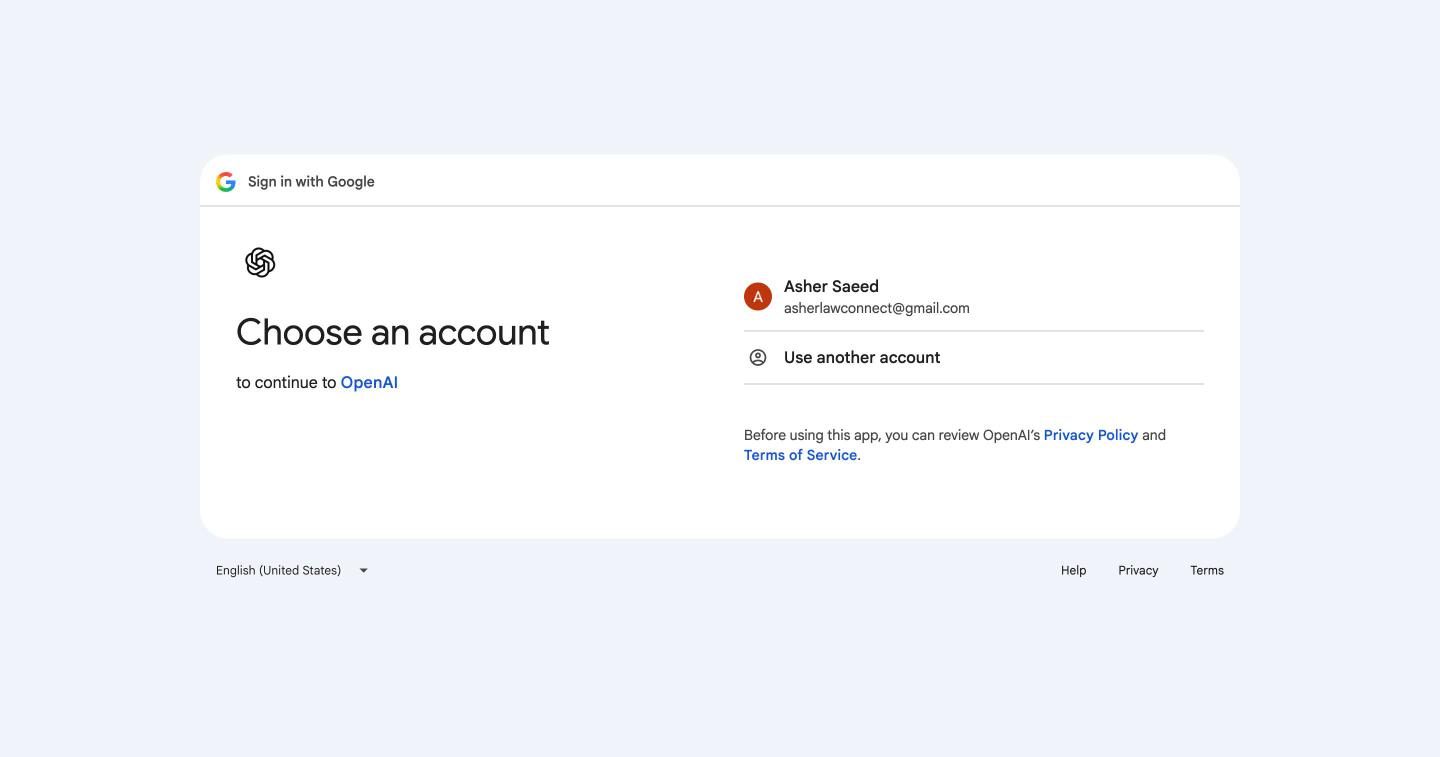
Choose the account that holds your documents.

This is Google's own sign in. Your password never goes into ChatGPT.

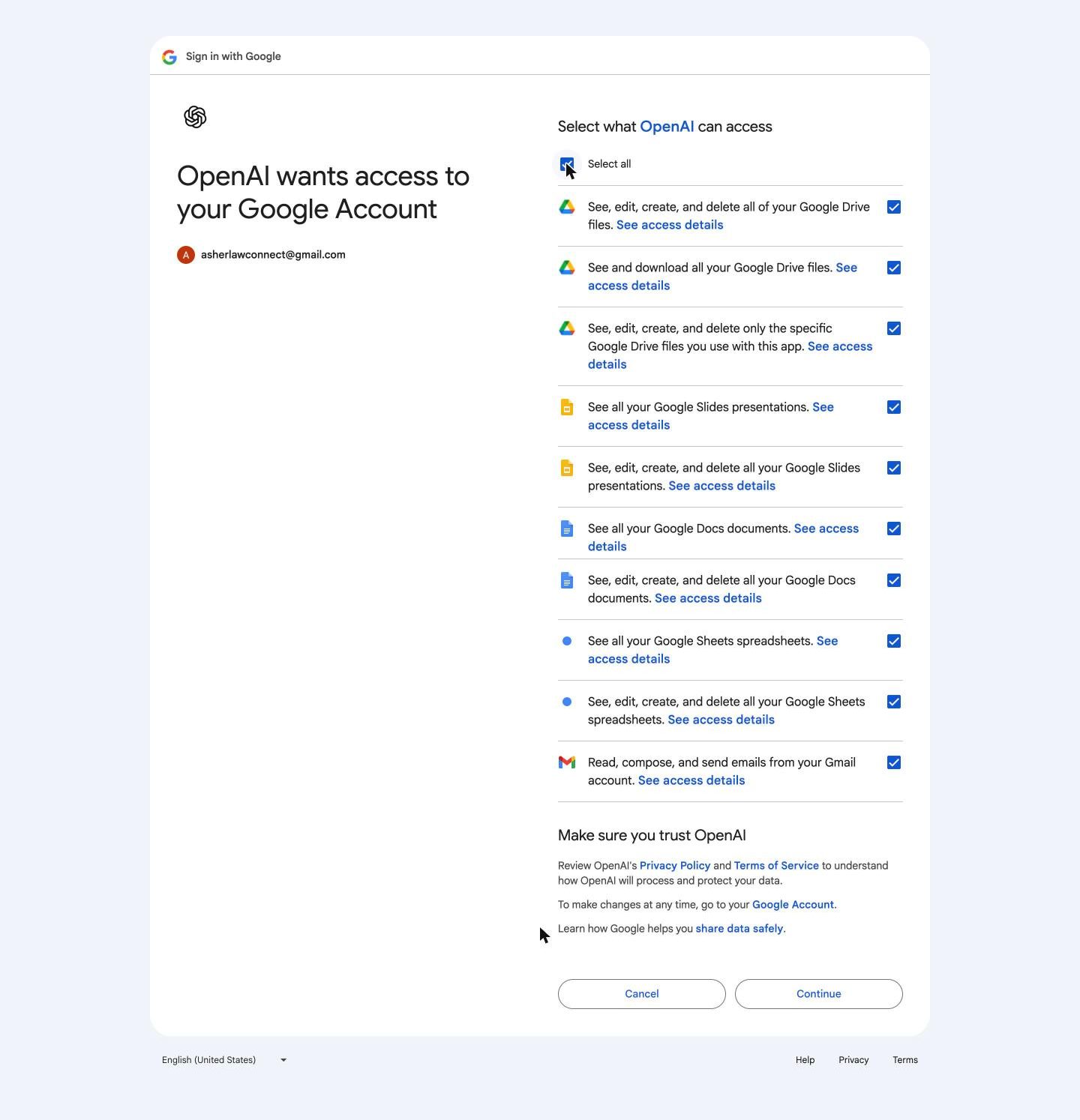
Tick Select all.

Google spells out each permission in plain language.

Scroll down and click Continue.

You can revoke this access from your Google account at any time.

Gmail and Drive now appear under Installed.

Setup is finished. You will not need to do this again.

Click Plugins at the top to go back to the directory.

You are still on the LawConnect listing from step 2. The back link sits above the plugin name.

Now click the + next to Gmail.

Your inbox is where the offer letter, the warning and the HR replies already are.

A Google dialog opens with four toggles on.

Calendar and Contacts are on by default.

Turn off Calendar and Contacts, then click Connect to Google.

Gmail and Google Drive are the two the plugin can search. Connect only what you want searched.

Click Continue to Google.

ChatGPT reminds you to select all permissions on the next screen.

Choose the account that holds your documents.

This is Google's own sign in. Your password never goes into ChatGPT.

Tick Select all.

Google spells out each permission in plain language.

Scroll down and click Continue.

You can revoke this access from your Google account at any time.

Gmail and Drive now appear under Installed.

Setup is finished. You will not need to do this again.

Step 3 of 5

Connect Outlook

The plugin searches the sources you connect. Outlook Email is where offer letters, warnings and HR replies already live. This uses Microsoft's own sign in.

chatgpt.com/plugins
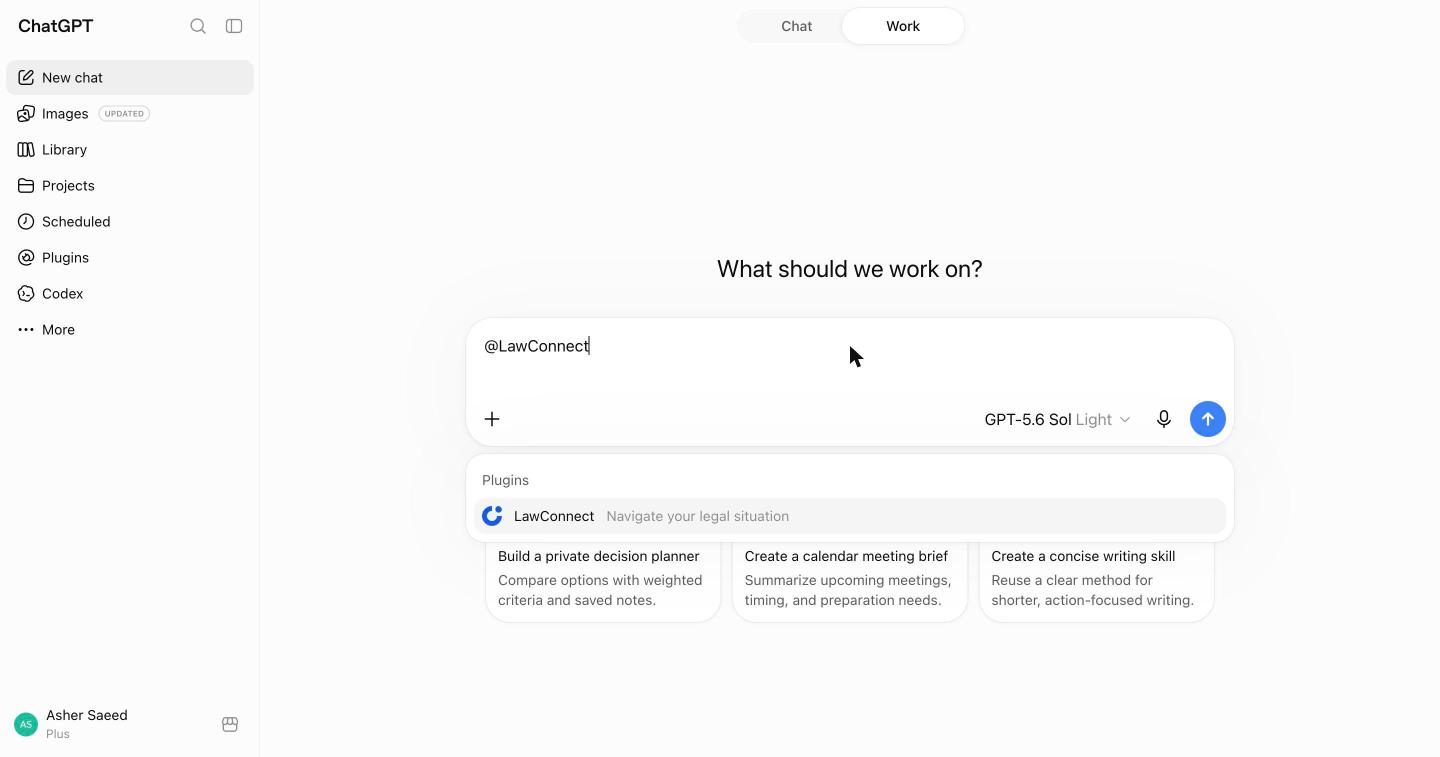
The LawConnect listing after installing, with a Plugins back link at the top The plugin directory with Outlook Email under Popular A notification reading Outlook Email plugin installed

Click Plugins at the top to go back to the directory.

You are still on the LawConnect listing from the previous step. The back link sits above the plugin name.

Click the + next to Outlook Email.

If Microsoft asks you to sign in, use the account that holds your email. Your password never goes into ChatGPT.

Look for "Outlook Email plugin installed".

That covers your inbox. There is no OneDrive plugin yet, so attach any files from your computer in the chat using the + button.

Click Plugins at the top to go back to the directory.

You are still on the LawConnect listing from the previous step. The back link sits above the plugin name.

Click the + next to Outlook Email.

If Microsoft asks you to sign in, use the account that holds your email. Your password never goes into ChatGPT.

Look for "Outlook Email plugin installed".

That covers your inbox. There is no OneDrive plugin yet, so attach any files from your computer in the chat using the + button.

Step 4 of 5

Start your case with @LawConnect

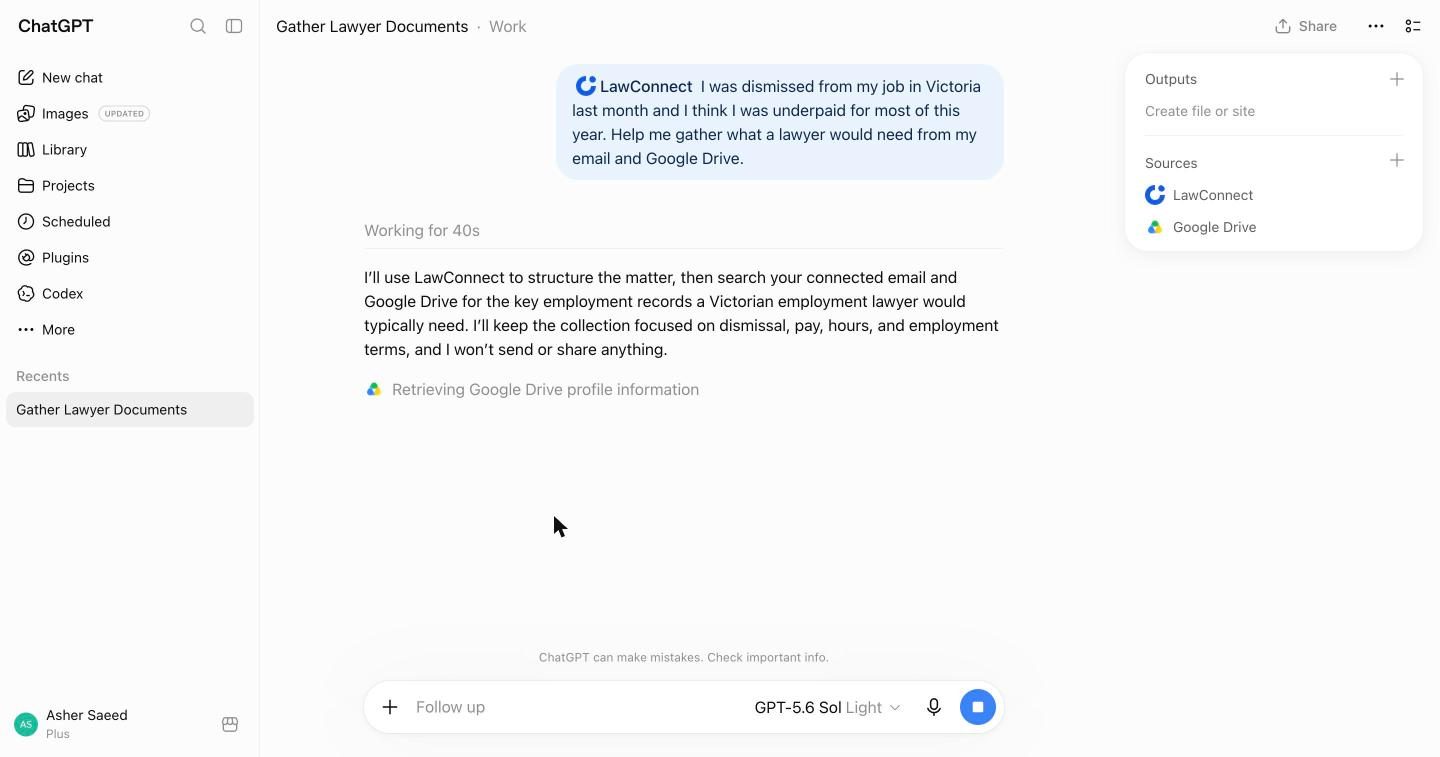
You address the plugin the same way you would mention a person, then describe what happened in plain words.

chatgpt.com
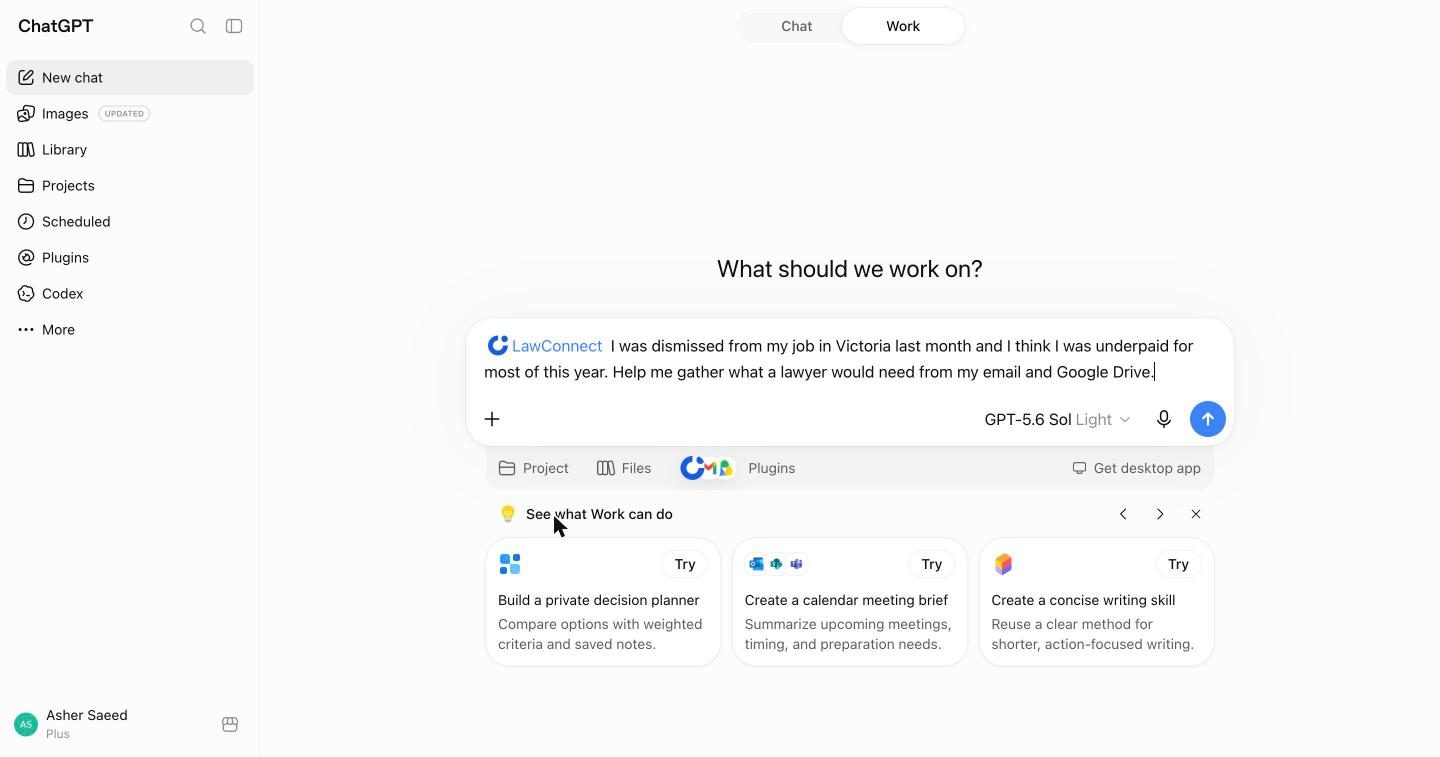
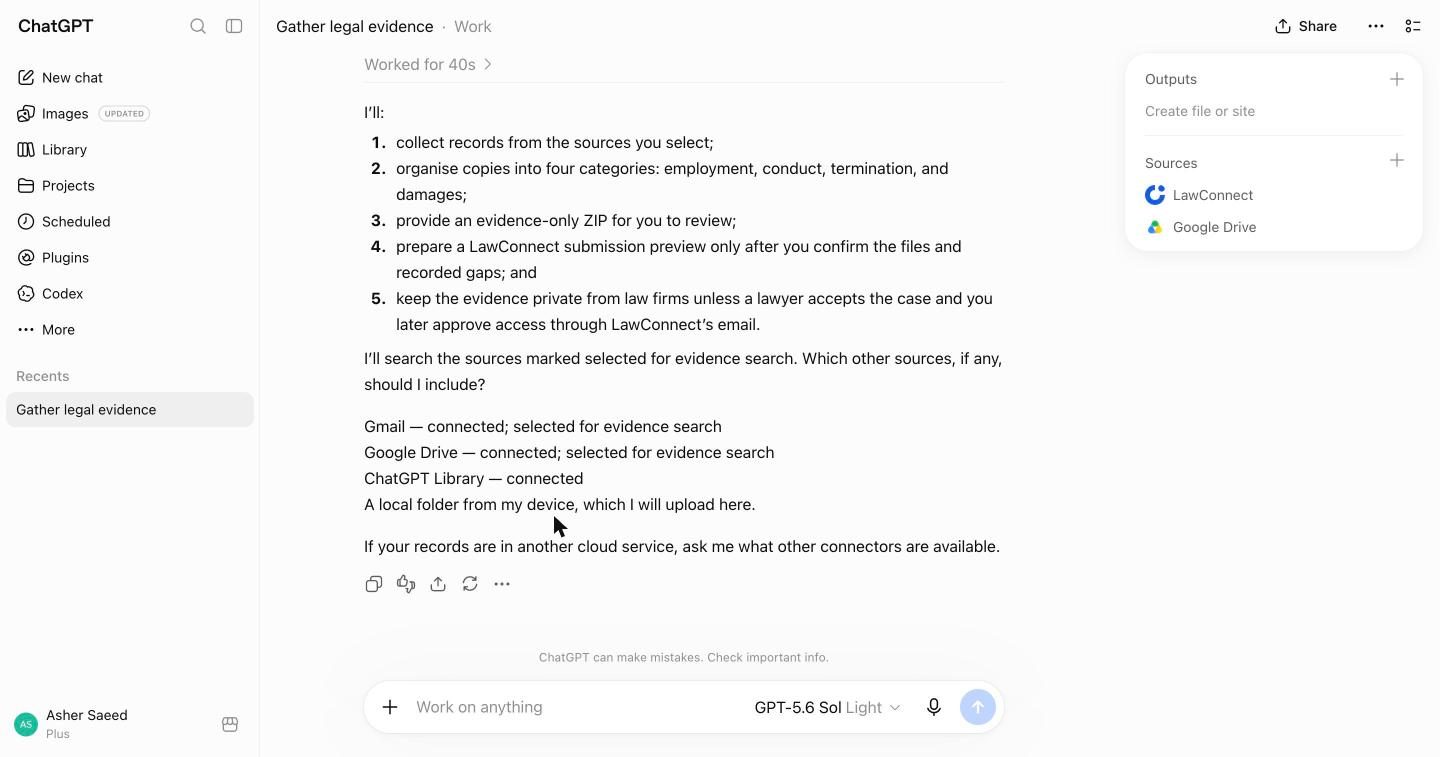
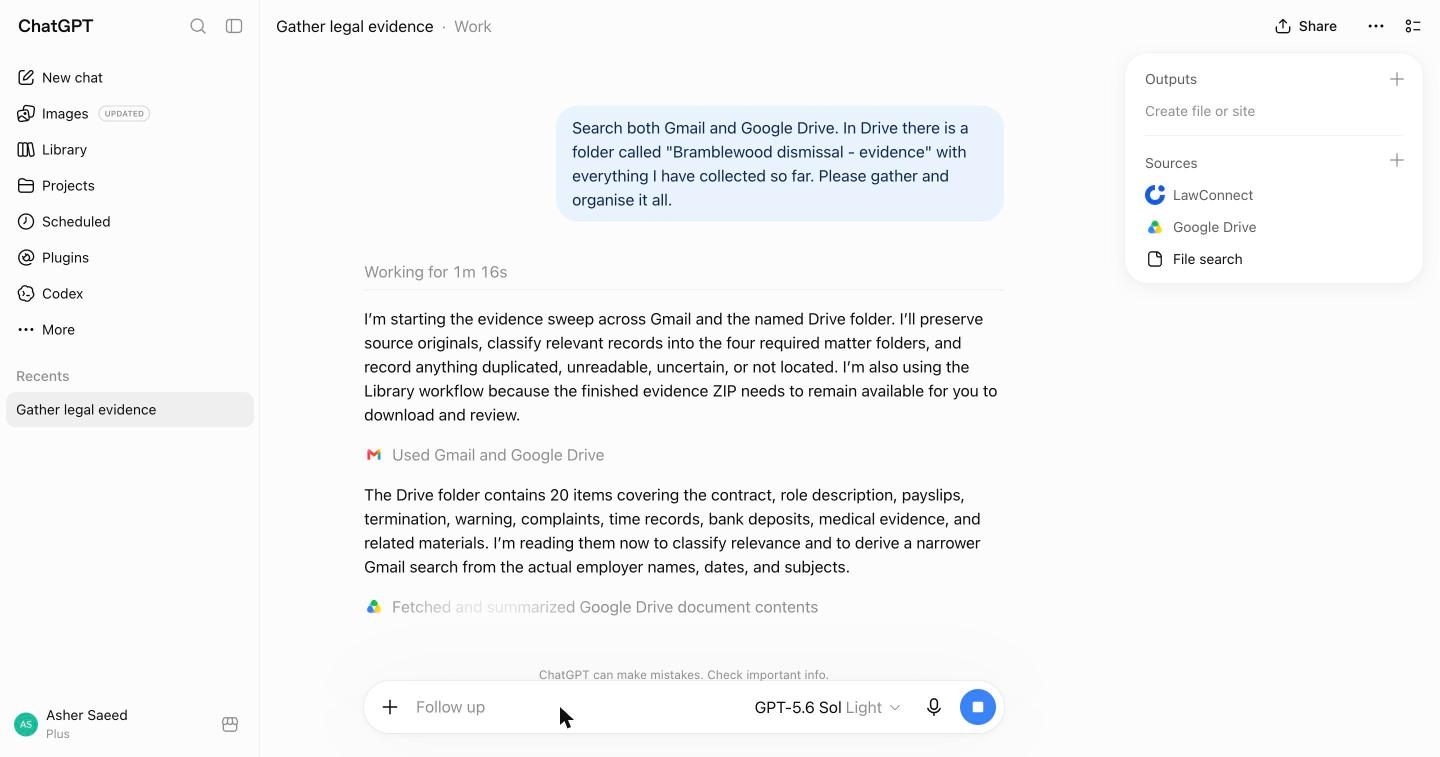
An empty ChatGPT composer Typing @LawConnect shows the plugin in a suggestion list A message addressed to LawConnect describing a dismissal in Victoria ChatGPT working, retrieving Google Drive profile information LawConnect's first reply listing the connected sources it will search

Click New chat, then type @ in the message box.

A Plugins list appears as soon as you type the @ sign.

Pick LawConnect from the list.

It becomes a blue chip at the start of your message.

Type what happened in plain words, then press Enter.

You do not need the legal terms. Say where you worked, what went wrong and what you think you are owed.

Wait while it works.

It works out the area of law, then your connected sources appear under Sources as the search begins. This used to be your homework after the first meeting.

Read the plan and answer its question.

It lists the sources it will search and asks if there are others. Nothing is sent anywhere yet.

Click New chat, then type @ in the message box.

A Plugins list appears as soon as you type the @ sign.

Pick LawConnect from the list.

It becomes a blue chip at the start of your message.

Type what happened in plain words, then press Enter.

You do not need the legal terms. Say where you worked, what went wrong and what you think you are owed.

Wait while it works.

It works out the area of law, then your connected sources appear under Sources as the search begins. This used to be your homework after the first meeting.

Read the plan and answer its question.

It lists the sources it will search and asks if there are others. Nothing is sent anywhere yet.

Step 5 of 5

Review what it gathers

The plugin reads the relevant files, groups them, and tells you what it could not find. Nothing leaves the conversation until you confirm.

chatgpt.com
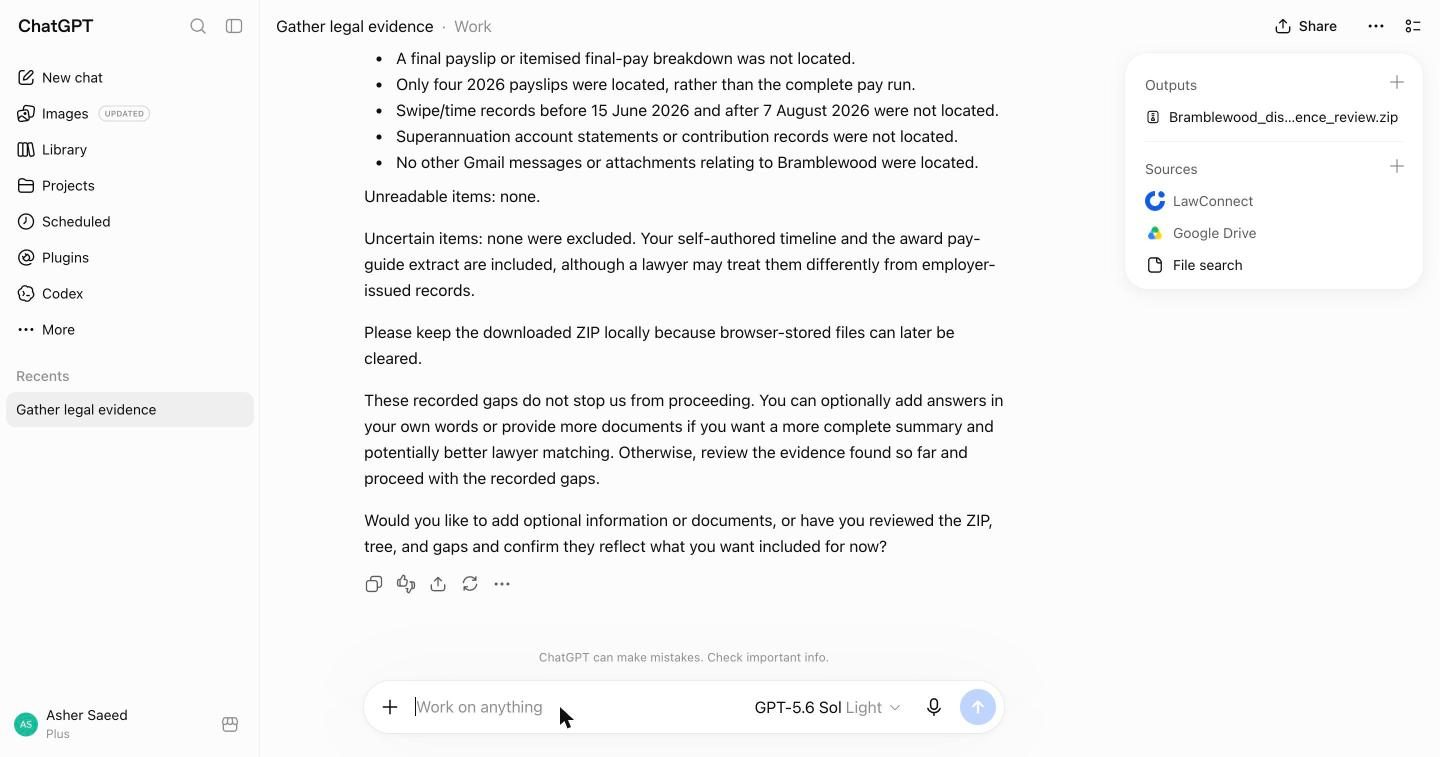
ChatGPT reporting that the Drive folder contains 20 items and it is reading them LawConnect's summary of recorded gaps and a downloadable evidence ZIP in the Outputs panel

It reads every relevant file it finds.

In this example it found 20 items, then used the employer name and dates it learned to search the inbox more precisely.

Check the list of gaps.

A final payslip, super statements, time records outside the window. These are the questions a lawyer would have asked in your first meeting.

Download the evidence ZIP from Outputs and review it.

Confirm in the chat when you are happy. Only then can your prepared files go to LawConnect to be matched with a law firm.

It reads every relevant file it finds.

In this example it found 20 items, then used the employer name and dates it learned to search the inbox more precisely.

Check the list of gaps.

A final payslip, super statements, time records outside the window. These are the questions a lawyer would have asked in your first meeting.

Download the evidence ZIP from Outputs and review it.

Confirm in the chat when you are happy. Only then can your prepared files go to LawConnect to be matched with a law firm.

That is the whole setup

Five steps, done once.

Next time you have a legal question, you only need step four: start a chat, type @LawConnect and describe what happened.

What happens to your documents

Your documents stay with you until you say otherwise.

  1. Submitting a matter shares a summary, not your files.

    When you send your matter to LawConnect, it creates an anonymised matter summary with the key details and shares that with the lawyer. No documents and no names.

  2. You speak to the lawyer first.

    The lawyer decides whether they can advise based on the summary alone, then calls you to talk it through.

  3. Documents are shared only on request, and only with your approval.

    After the call, the lawyer can request access to your documents. LawConnect asks you by email, and nothing is shared until you approve it.

Try it

Start with one of the example prompts

These open ChatGPT with the message ready to send. Edit the details to match your situation.

If the plugin is not installed yet, ChatGPT will prompt you to install it when you send. LawConnect helps you navigate a legal situation in Australia and is not a law firm.